Schenectady Photographic Society

Menu

Photoshop Tutorials

How to Use Reference Images with Generative Fill in Photoshop

How to Use Reference Images with Generative Fill in Photoshop

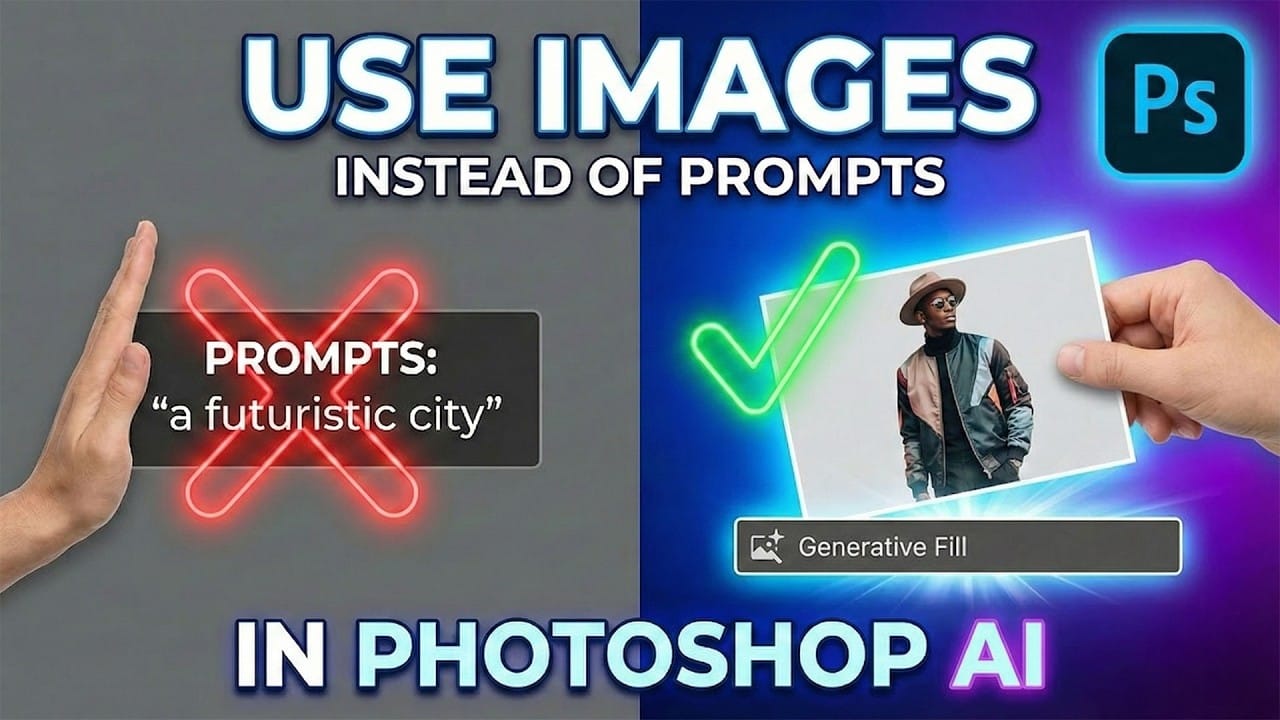
Reference images revolutionize how Generative Fill works, letting you guide AI with actual photos instead of text prompts. This feature enables precise clothing swaps, object replacements, and realistic additions by showing the AI exactly what you want rather than describing it. The technique works with everything from custom t-shirts and Read the full article here: […]
Read more: How to Use Reference Images with Generative Fill in Photoshop
How to Remove Eye Bags Using Dodge and Burn in Photoshop

How to Remove Eye Bags Using Dodge and Burn in Photoshop

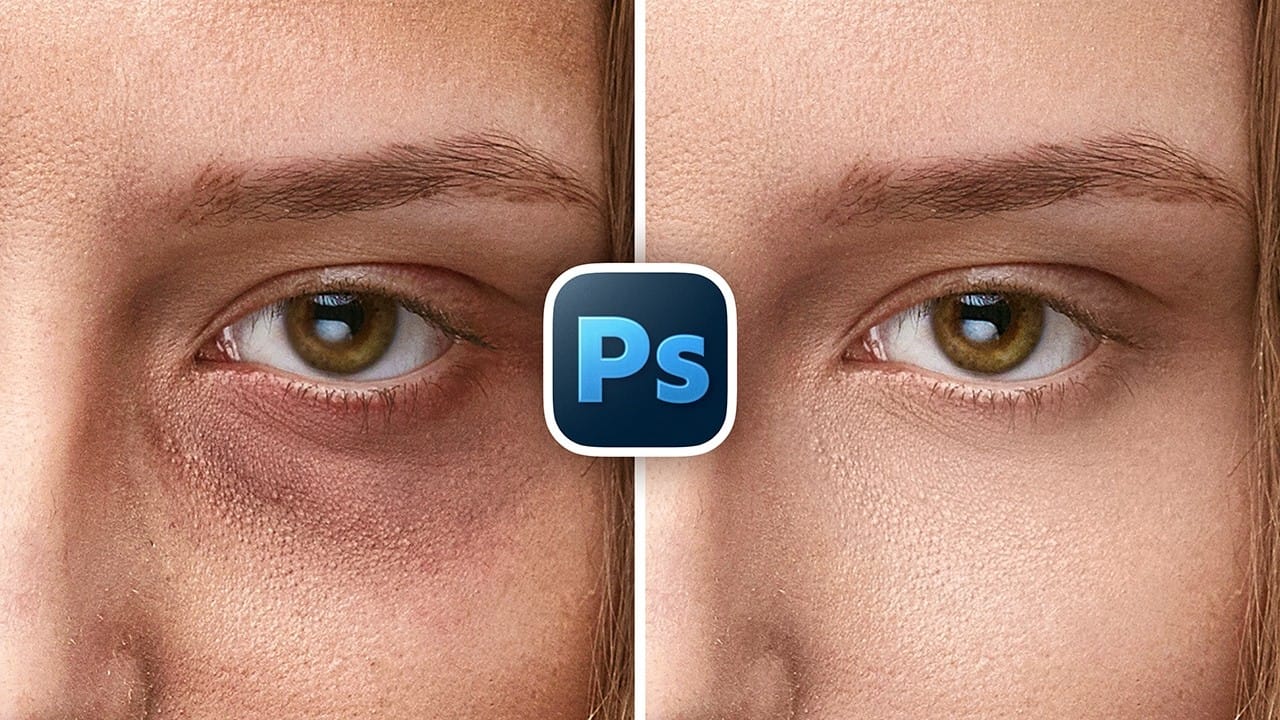
Eye bags can dramatically age a portrait, making subjects appear tired or unhealthy. Traditional removal methods often destroy skin texture or create unnatural results that look obviously retouched. This professional dodge and burn technique removes even severe eye bags while preserving every detail of natural skin texture. The method uses Read the full article here: […]

Read more: How to Remove Eye Bags Using Dodge and Burn in Photoshop
How to Fix Crossed Eyes and Lazy Eyes in Photoshop

How to Fix Crossed Eyes and Lazy Eyes in Photoshop

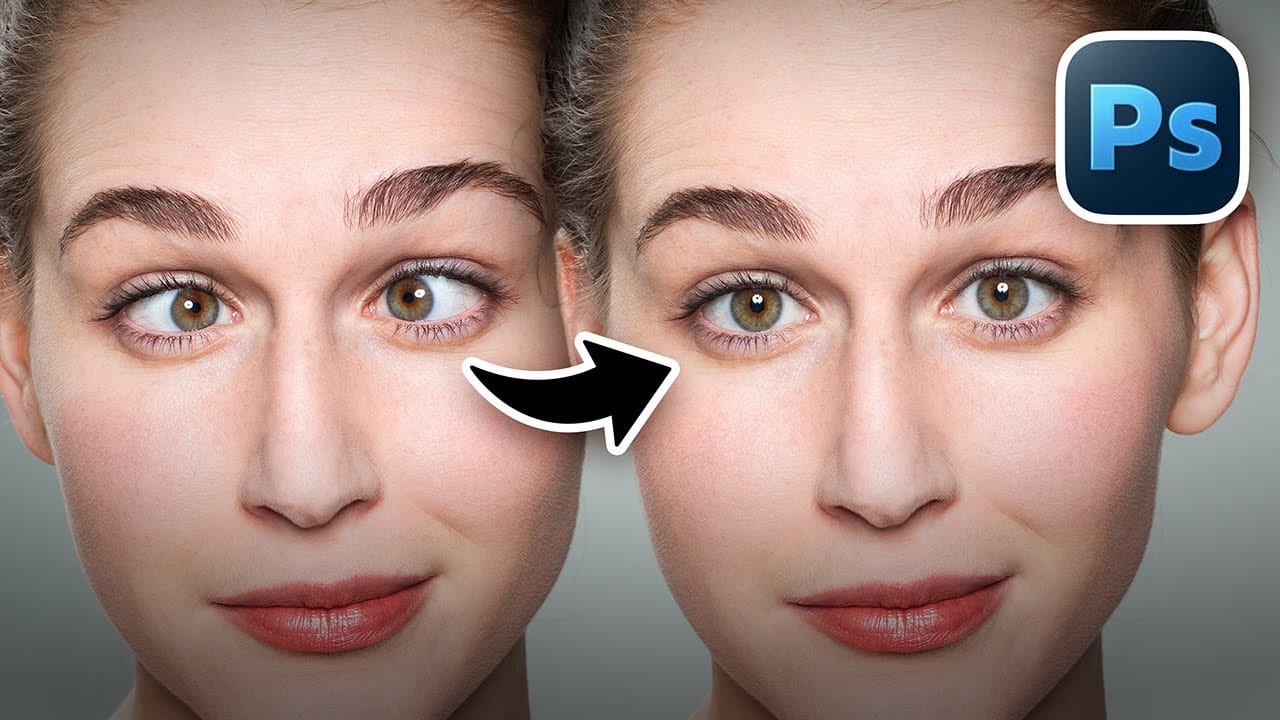
Portrait photographers and retouchers often encounter images where subjects have crossed or lazy eyes, which can distract from an otherwise great shot. Whether caused by timing, lighting, or natural eye alignment issues, these problems can be corrected effectively without compromising image quality. This tutorial demonstrates two practical approaches: using AI-powered Read the full article here: […]
Read more: How to Fix Crossed Eyes and Lazy Eyes in Photoshop
How to Edit Snow in Landscape Photos Using AI Masking Tools

How to Edit Snow in Landscape Photos Using AI Masking Tools

Editing winter landscapes traditionally requires careful masking to enhance different elements like snow, sky, and vegetation separately. The new AI landscape tool automatically detects and creates precise masks for these elements, including snow, making complex edits surprisingly simple. This workflow works identically across multiple platforms, allowing you to enhance winter Read the full article here: […]

Read more: How to Edit Snow in Landscape Photos Using AI Masking Tools
How to Contract a Selection to Eliminate White Edge Artifacts.

How to Contract a Selection to Eliminate White Edge Artifacts.

White edge artifacts can ruin otherwise perfect cutouts, appearing as unwanted halos around selected objects after background removal. These artifacts occur when selection edges capture tiny fragments of the original background, creating visible white outlines that become obvious against new backgrounds. The Contract modifier in Photoshop's Select menu Read the full article here: How to […]

Read more: How to Contract a Selection to Eliminate White Edge Artifacts.
How to Use New Camera Raw Adjustment Layers in Photoshop Beta

How to Use New Camera Raw Adjustment Layers in Photoshop Beta

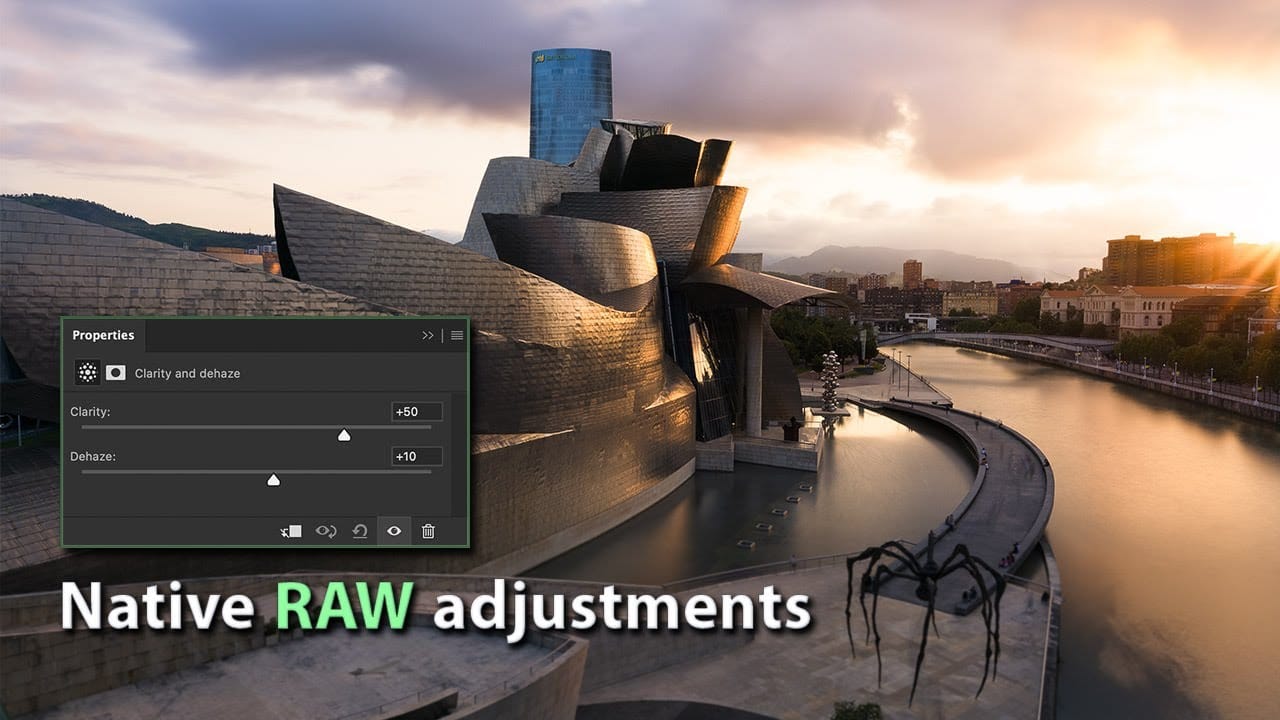
Three new adjustment layers in Photoshop beta bring Camera Raw's most powerful tools directly into your layers panel. Color and Vibrance, Clarity and Dehaze, and Grain adjustments now work as standard adjustment layers, eliminating the need for smart objects while maintaining all the precision masking and blending capabilities Read the full article here: How to […]

Read more: How to Use New Camera Raw Adjustment Layers in Photoshop Beta
How to Wrap Designs Around Complex Objects Using Displacement Maps in Photoshop

How to Wrap Designs Around Complex Objects Using Displacement Maps in Photoshop

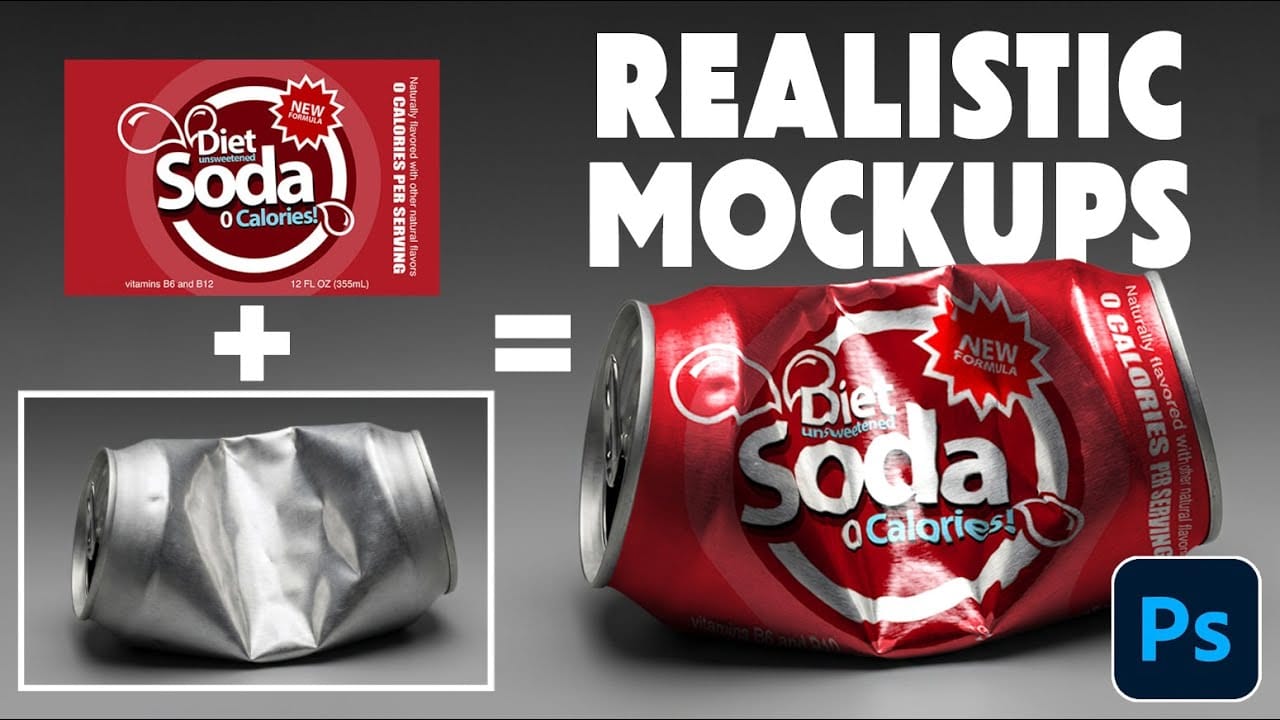
Professional mockups require more than simply placing a design onto an object. Complex surfaces like crushed aluminum cans demand advanced techniques to achieve realistic wrapping that follows every contour and deformation. This process combines displacement mapping, smart objects, and blending modes to create reusable templates that automatically conform any design Read the full article here: […]

Read more: How to Wrap Designs Around Complex Objects Using Displacement Maps in Photoshop