Schenectady Photographic Society

Menu

Photoshop

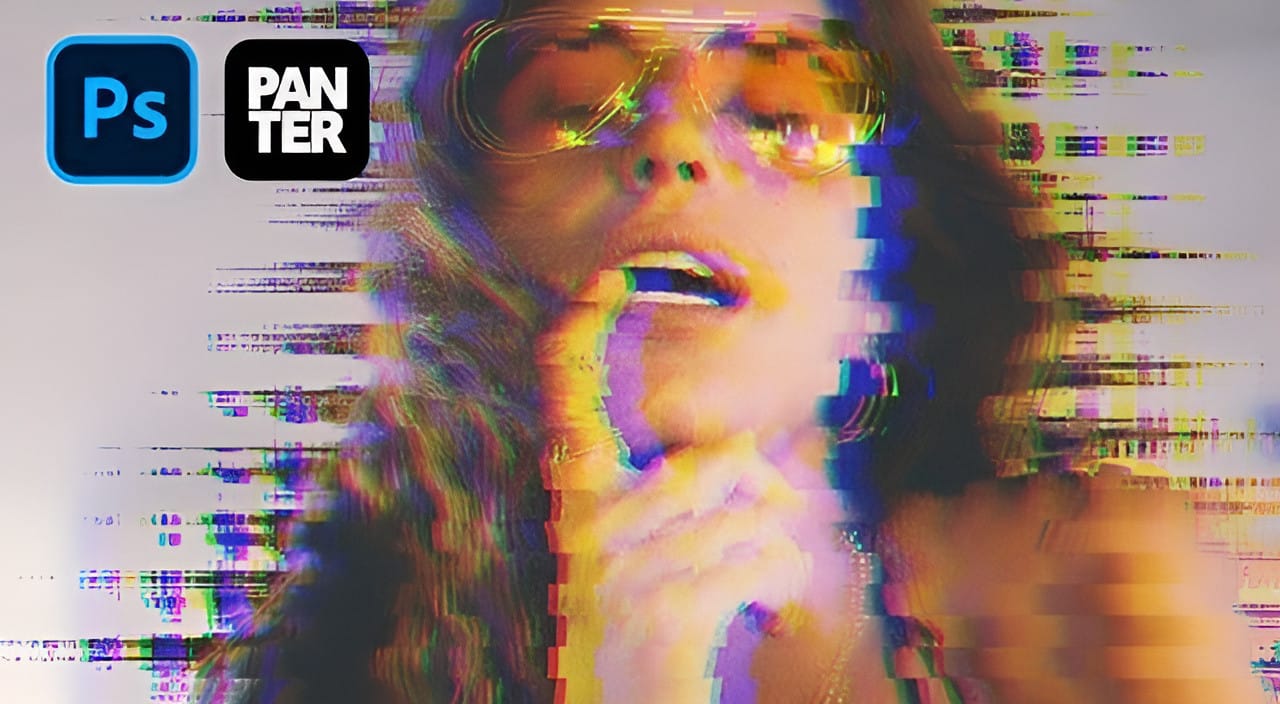
Create a Distorted Wave Glitch Effect in Photoshop

Create a Distorted Wave Glitch Effect in Photoshop

Digital distortion effects transform ordinary portraits into striking visual art by warping reality through deliberate technical manipulation. This technique uses multiple wave filters layered together to create increasingly complex distortions, while selective masking preserves important facial features from becoming completely unrecognizable. Watch the Video Practical Tips Master the wave distortion Read the full article here: […]

Read more: Create a Distorted Wave Glitch Effect in Photoshop
Photoshop January 2026 Update: 5 New Features Including Grain and Clarity Adjustment Layers

Photoshop January 2026 Update: 5 New Features Including Grain and Clarity Adjustment Layers

Photoshop's January 2026 update brings five significant features that streamline common editing tasks. The highlight is new adjustment layers for grain and clarity effects, eliminating the need to work in Camera Raw for these adjustments. The update also introduces an improved generative AI model with higher resolution output Read the full article here: Photoshop January […]

Read more: Photoshop January 2026 Update: 5 New Features Including Grain and Clarity Adjustment Layers
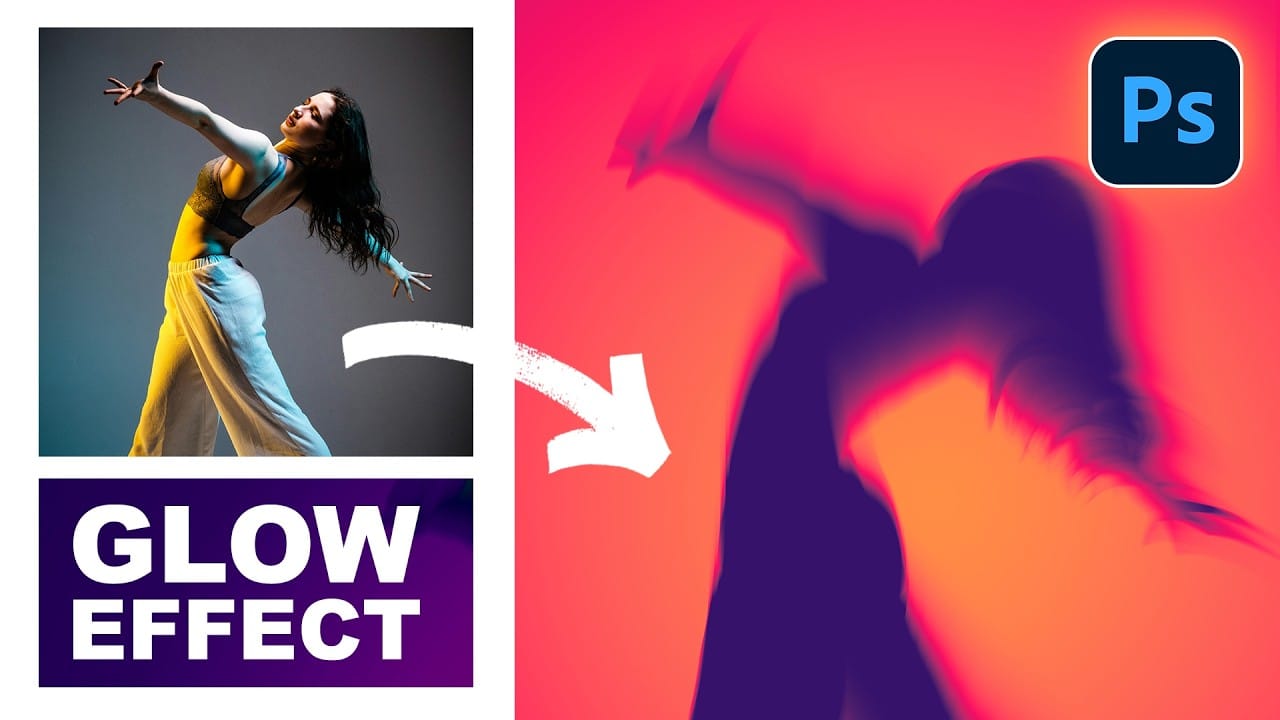
How to Create Glow Motion Effects with Gradient Maps in Photoshop

How to Create Glow Motion Effects with Gradient Maps in Photoshop

Motion blur combined with colorful gradients creates striking visual effects that transform ordinary photos into dynamic, cinematic images. This technique uses gradient maps to automatically color light and dark values, producing flowing color transitions that follow the movement of your subject. The process involves subject isolation, strategic gradient placement, path Read the full article here: […]

Read more: How to Create Glow Motion Effects with Gradient Maps in Photoshop
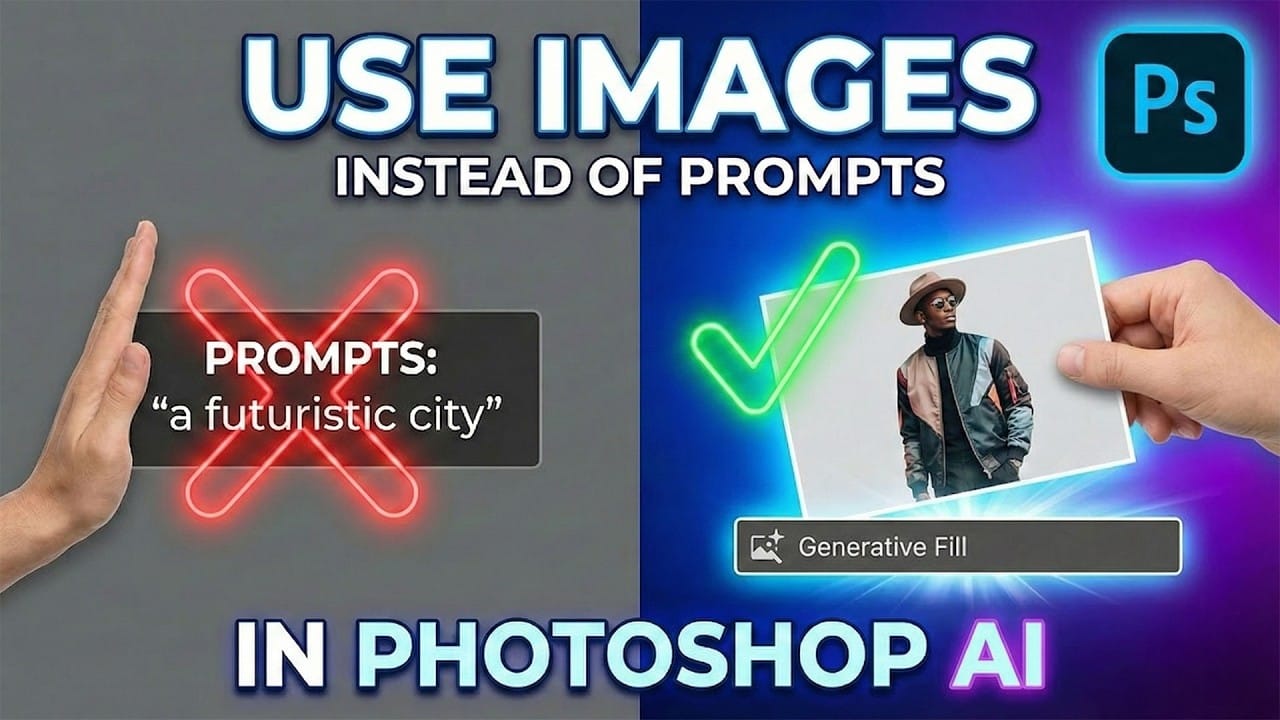
How to Use Reference Images with Generative Fill in Photoshop

How to Use Reference Images with Generative Fill in Photoshop

Reference images revolutionize how Generative Fill works, letting you guide AI with actual photos instead of text prompts. This feature enables precise clothing swaps, object replacements, and realistic additions by showing the AI exactly what you want rather than describing it. The technique works with everything from custom t-shirts and Read the full article here: […]

Read more: How to Use Reference Images with Generative Fill in Photoshop
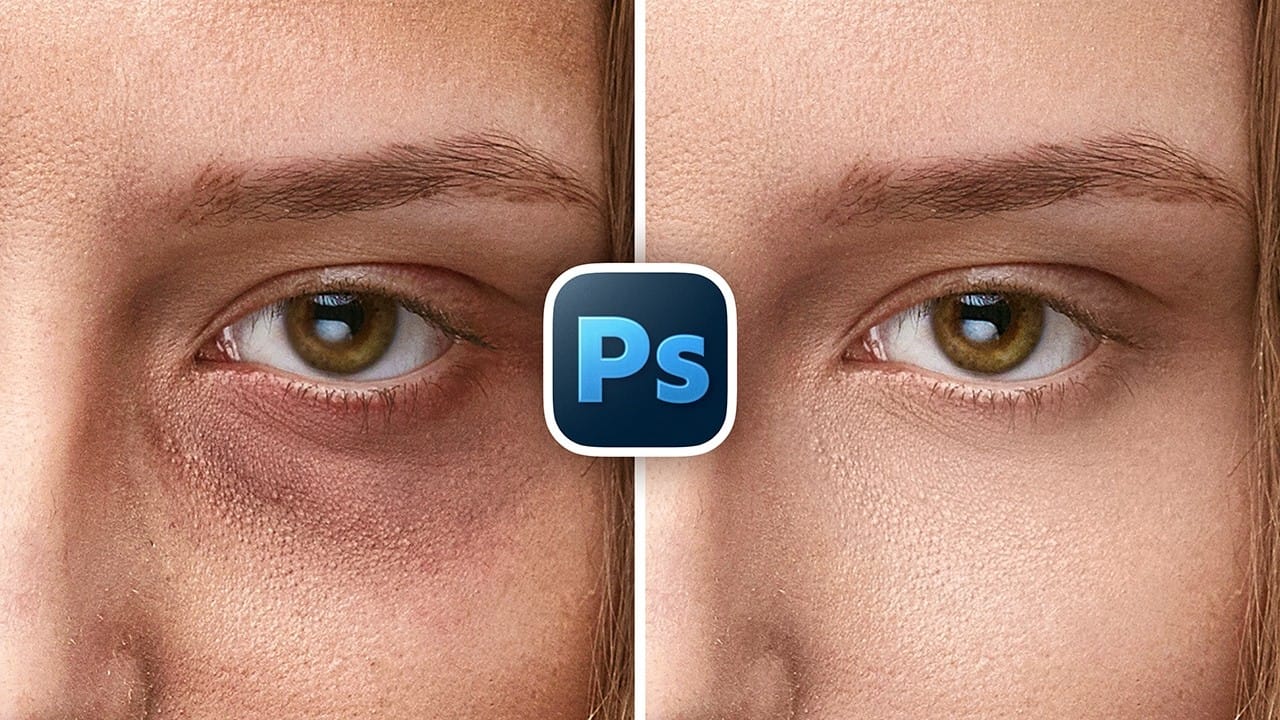
How to Remove Eye Bags Using Dodge and Burn in Photoshop

How to Remove Eye Bags Using Dodge and Burn in Photoshop

Eye bags can dramatically age a portrait, making subjects appear tired or unhealthy. Traditional removal methods often destroy skin texture or create unnatural results that look obviously retouched. This professional dodge and burn technique removes even severe eye bags while preserving every detail of natural skin texture. The method uses Read the full article here: […]

Read more: How to Remove Eye Bags Using Dodge and Burn in Photoshop
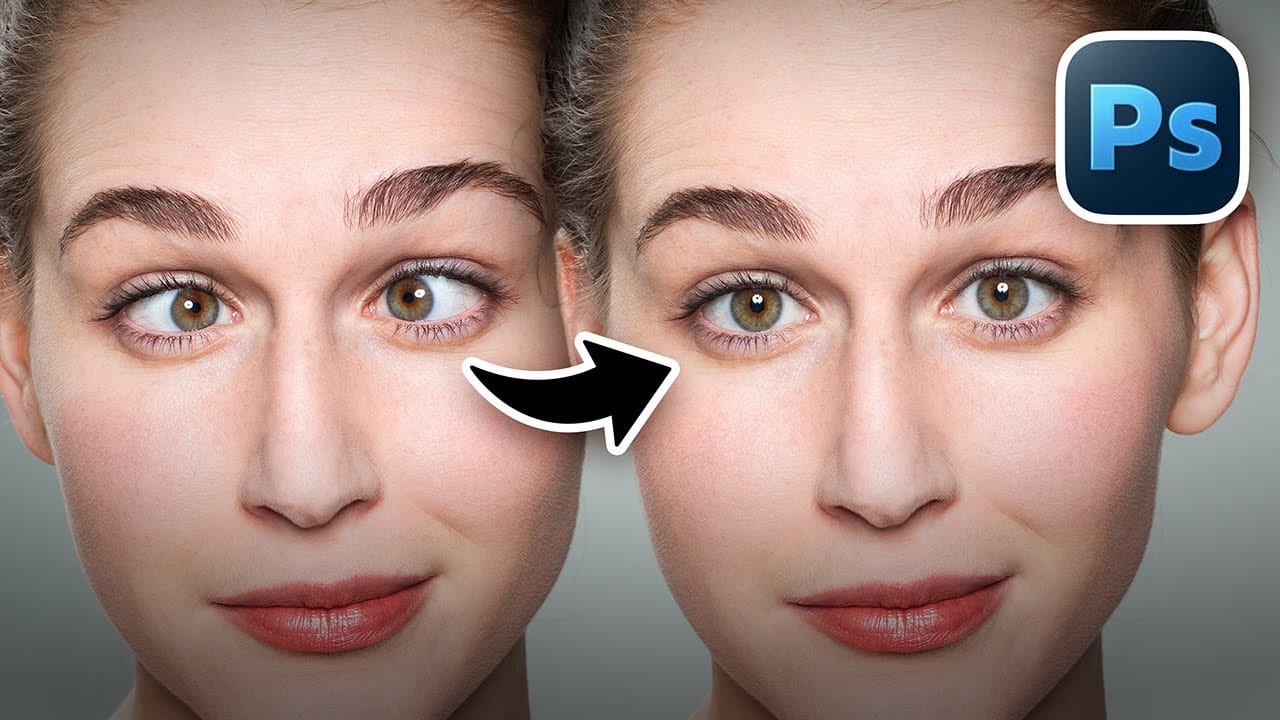
How to Fix Crossed Eyes and Lazy Eyes in Photoshop

How to Fix Crossed Eyes and Lazy Eyes in Photoshop

Portrait photographers and retouchers often encounter images where subjects have crossed or lazy eyes, which can distract from an otherwise great shot. Whether caused by timing, lighting, or natural eye alignment issues, these problems can be corrected effectively without compromising image quality. This tutorial demonstrates two practical approaches: using AI-powered Read the full article here: […]

Read more: How to Fix Crossed Eyes and Lazy Eyes in Photoshop
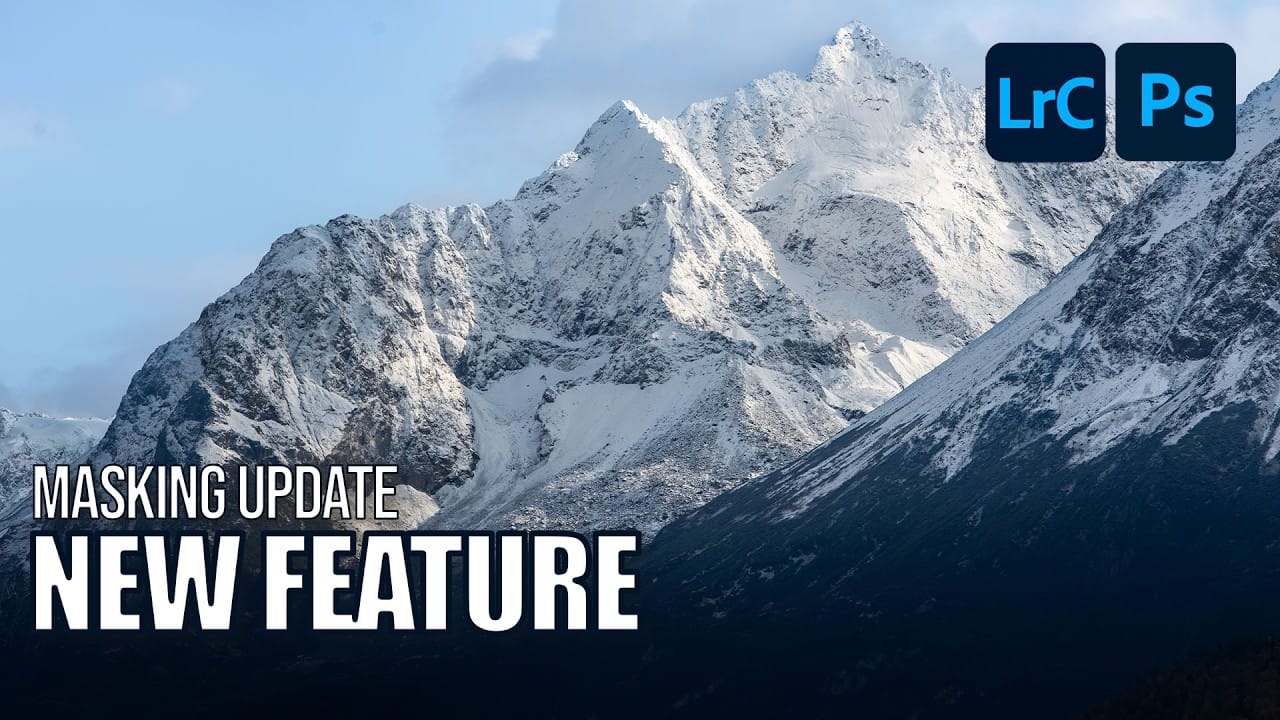
How to Edit Snow in Landscape Photos Using AI Masking Tools

How to Edit Snow in Landscape Photos Using AI Masking Tools

Editing winter landscapes traditionally requires careful masking to enhance different elements like snow, sky, and vegetation separately. The new AI landscape tool automatically detects and creates precise masks for these elements, including snow, making complex edits surprisingly simple. This workflow works identically across multiple platforms, allowing you to enhance winter Read the full article here: […]

Read more: How to Edit Snow in Landscape Photos Using AI Masking Tools
How to Contract a Selection to Eliminate White Edge Artifacts.

How to Contract a Selection to Eliminate White Edge Artifacts.

White edge artifacts can ruin otherwise perfect cutouts, appearing as unwanted halos around selected objects after background removal. These artifacts occur when selection edges capture tiny fragments of the original background, creating visible white outlines that become obvious against new backgrounds. The Contract modifier in Photoshop's Select menu Read the full article here: How to […]

Read more: How to Contract a Selection to Eliminate White Edge Artifacts.