Schenectady Photographic Society

Menu

Text Effects

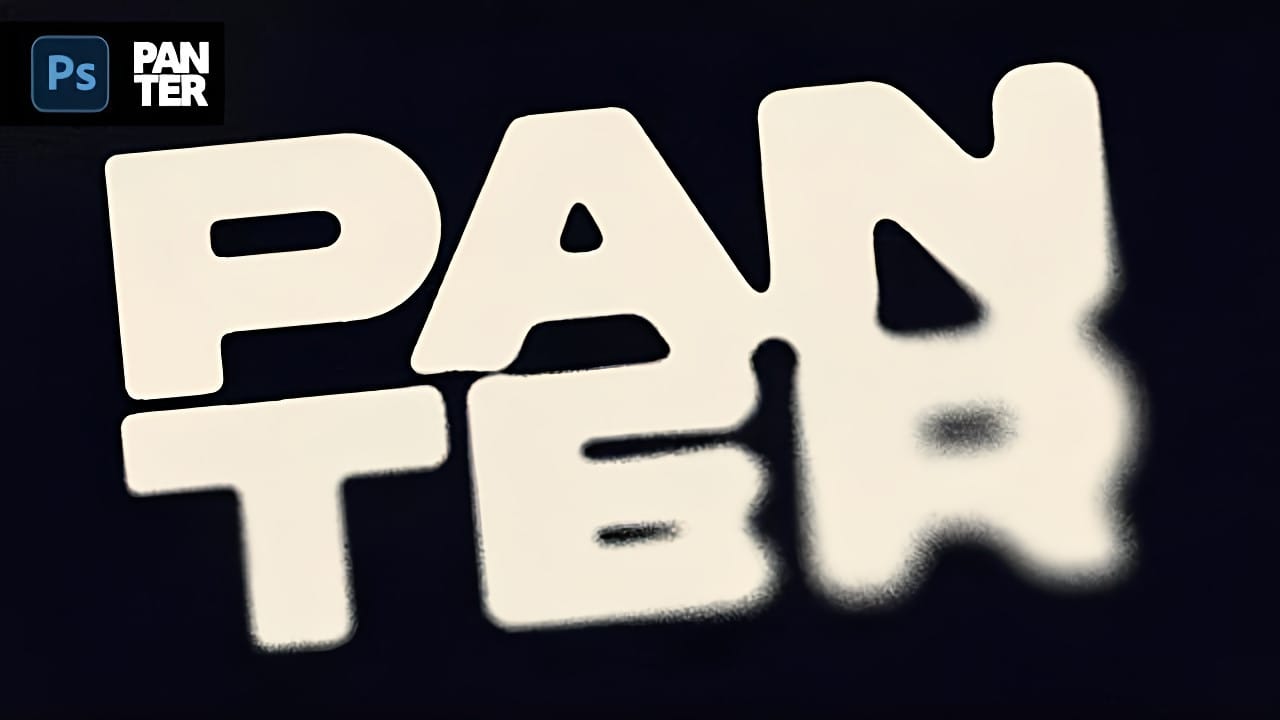
Distressed Ink Bleed Text Effect in Photoshop

Distressed Ink Bleed Text Effect in Photoshop

Street art and underground design aesthetics have a raw, rebellious quality that draws the eye and commands attention. The distressed ink bleed effect captures this energy by transforming clean typography into something that looks weathered, organic, and authentically gritty. This technique combines blur effects with threshold adjustments to create text Read the full article here: […]
Read more: Distressed Ink Bleed Text Effect in Photoshop
How to Create Chromatic Aberration Text Effect in Photoshop

How to Create Chromatic Aberration Text Effect in Photoshop

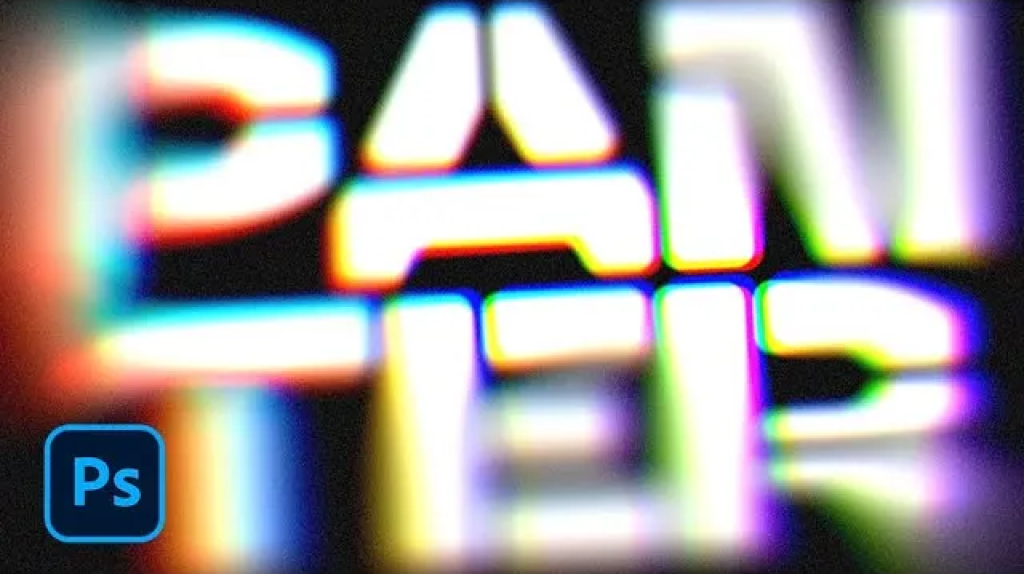
Chromatic aberration brings that dreamy, vintage camera lens distortion that makes text pop with separated color channels. This optical effect mimics how cheaper lenses struggle to focus all colors at the same point, creating those signature red, green, and blue edges that drift apart. This technique transforms ordinary text into Read the full article here: […]

Read more: How to Create Chromatic Aberration Text Effect in Photoshop
How to Create a Text and Photo Poster with Displacement Effects in Photoshop

How to Create a Text and Photo Poster with Displacement Effects in Photoshop

Integrating typography with photography in poster design presents unique creative opportunities, especially when text appears to naturally wrap around the contours and textures of photographic elements. This effect transforms flat text into a dimensional element that feels organically connected to the underlying image, creating visual depth and sophisticated composition. This Read the full article here: […]

Read more: How to Create a Text and Photo Poster with Displacement Effects in Photoshop
Add Text Behind a Subject with Realistic Shadows in Photoshop

Add Text Behind a Subject with Realistic Shadows in Photoshop

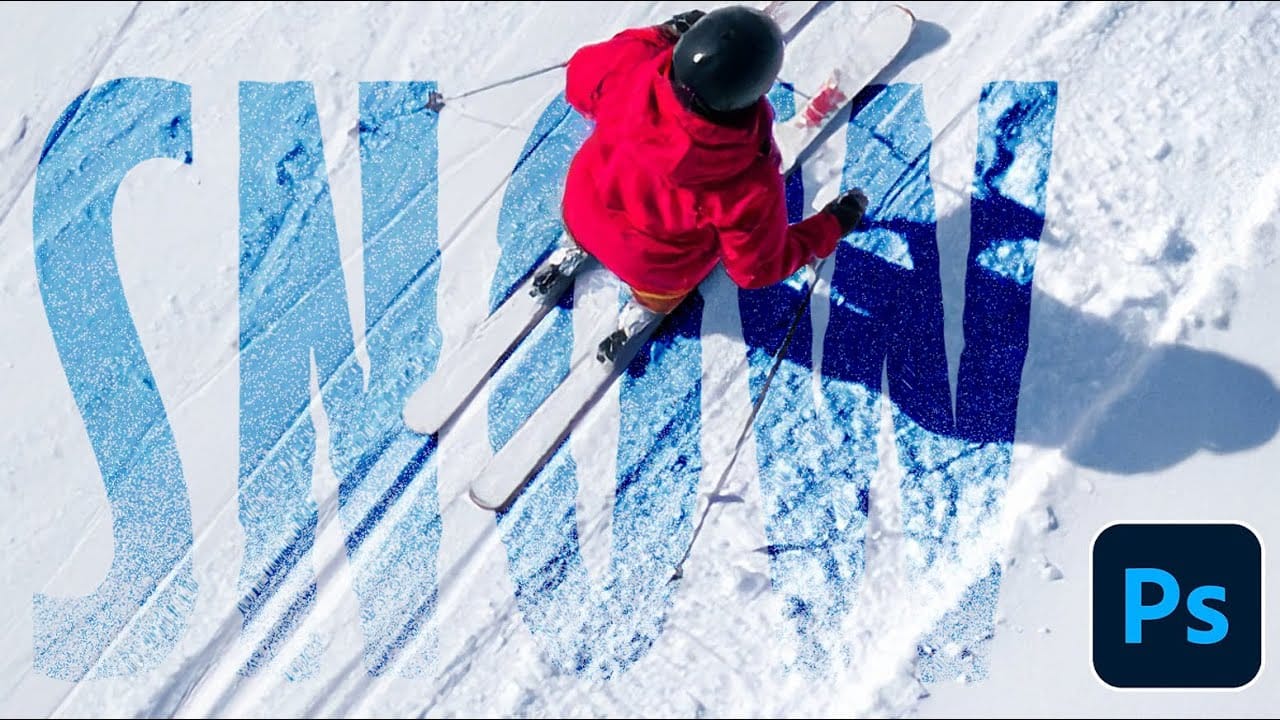
Want to know how to make text appear behind a subject in Photoshop with convincing shadows? This quick guide covers the key steps. The process begins by placing text strategically behind your chosen image element while ensuring that everything remains easily editable for later adjustments. Next, you will discover how to use Photoshop's core features […]

Read more: Add Text Behind a Subject with Realistic Shadows in Photoshop