Schenectady Photographic Society

Menu

Tools and tips

How to Remove Objects from Photos Using AI Tools in Photoshop

How to Remove Objects from Photos Using AI Tools in Photoshop

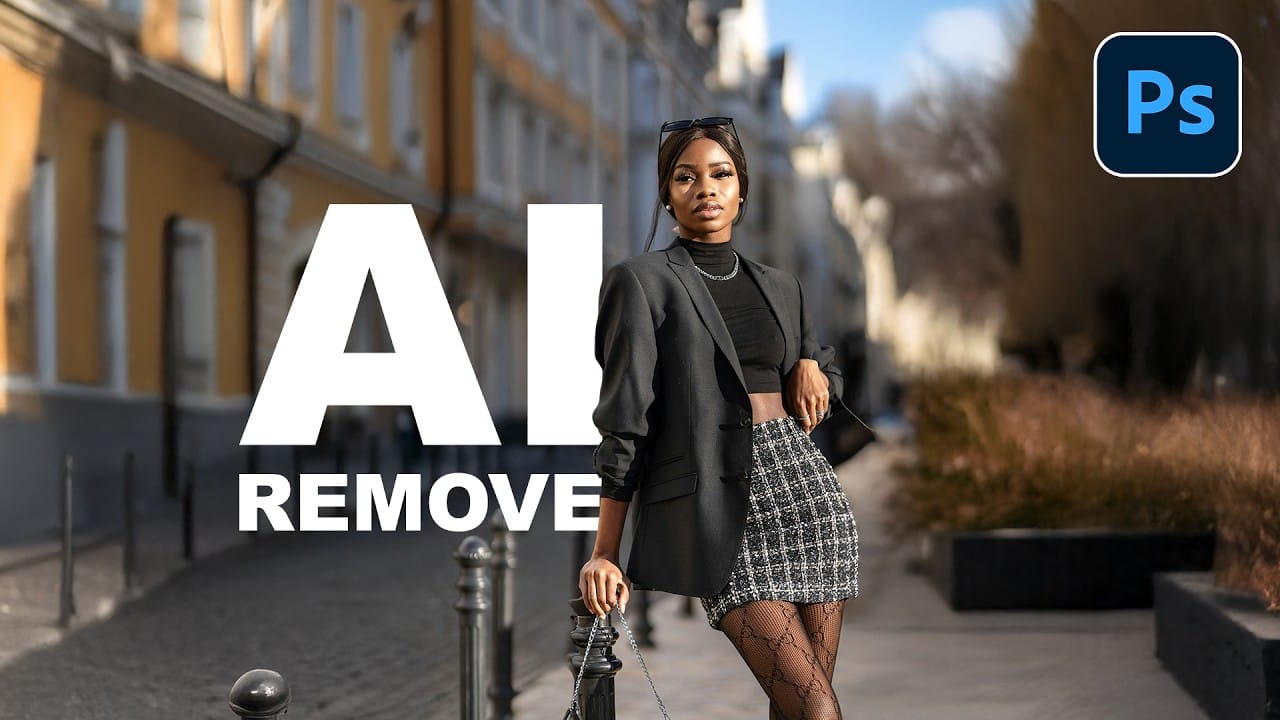
Photoshop's AI-powered object removal tools can eliminate unwanted distractions from your photos with minimal effort. The Remove Tool and Generative Fill feature automated detection for common distractions like people and wires, plus manual painting options for custom removals. These tools work on separate layers, preserving your original image Read the full article here: How to […]
Read more: How to Remove Objects from Photos Using AI Tools in Photoshop
Speed Up Your Color Grading Workflow with Photoshop Actions

Speed Up Your Color Grading Workflow with Photoshop Actions

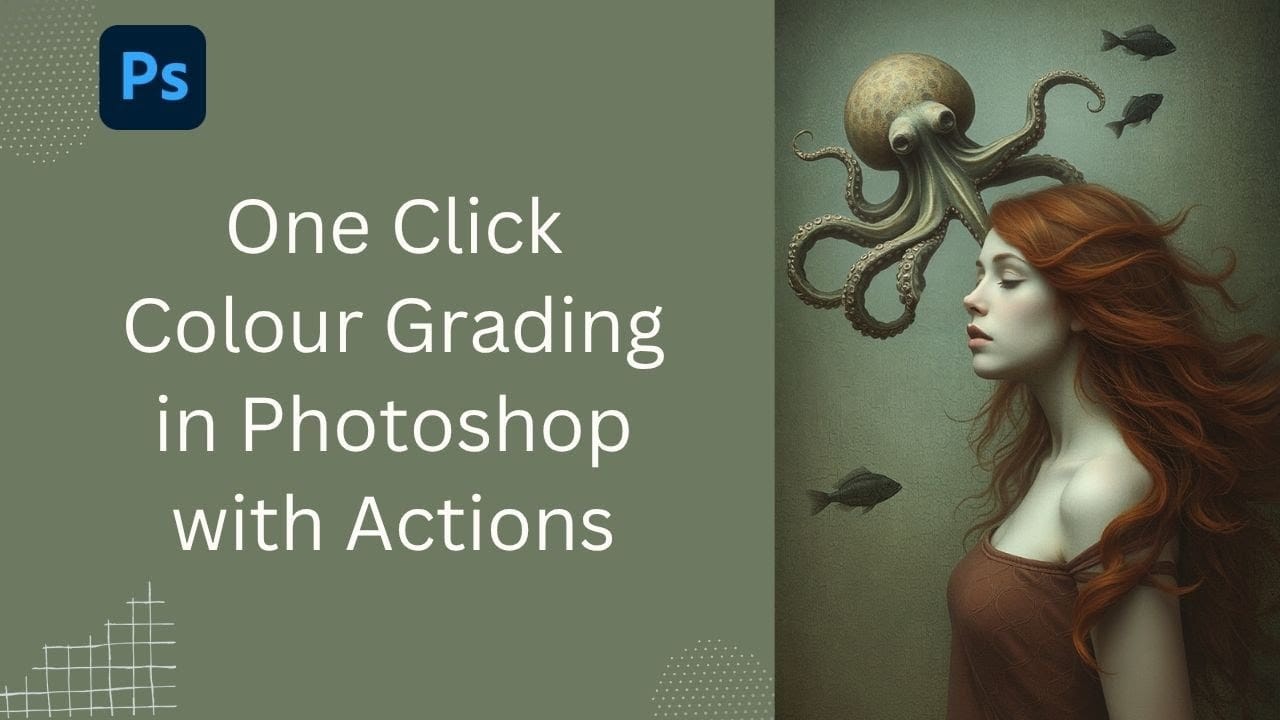
Color grading can transform your images, but manually adjusting curves and levels for every photo takes time. Photoshop actions offer a faster approach by applying professional color treatments with a single click. This workflow uses pre-built actions, tints, and LUTs to achieve various moods and styles instantly, letting you layer Read the full article here: […]

Read more: Speed Up Your Color Grading Workflow with Photoshop Actions
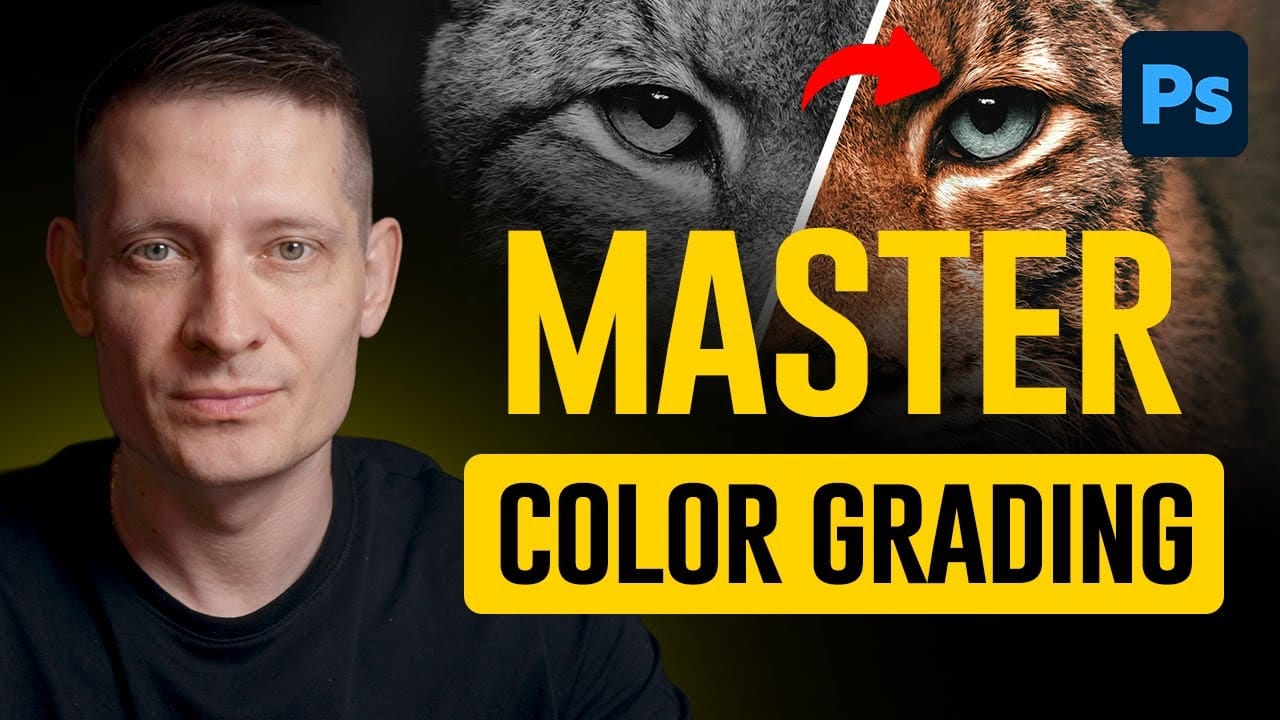
Professional Color Grading Techniques in Photoshop

Professional Color Grading Techniques in Photoshop

Color grading transforms ordinary photos into compelling images with professional mood and atmosphere. These non-destructive techniques let you adjust tones, enhance specific colors, and create cinematic looks while preserving your original image data. Master these four essential color grading methods to develop a consistent editing workflow that elevates your photography. Read the full article here: […]

Read more: Professional Color Grading Techniques in Photoshop
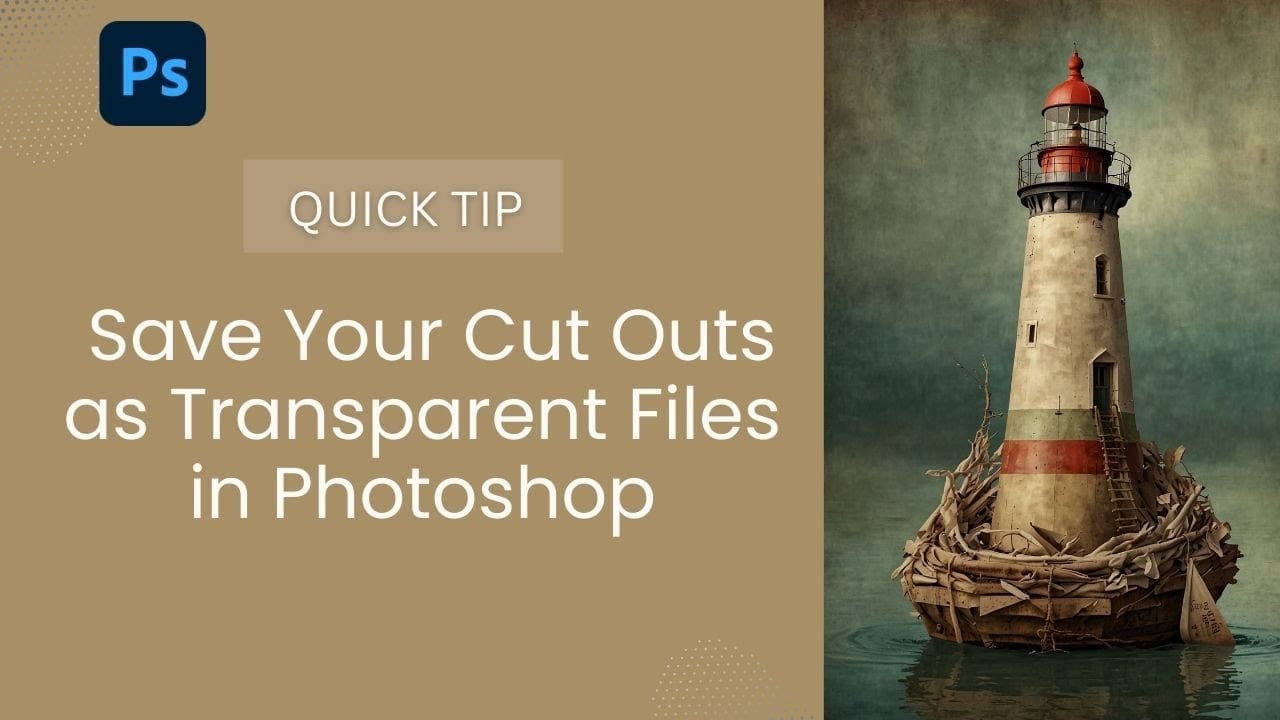
How to Save Cut-Out Elements with Transparent Backgrounds in Photoshop

How to Save Cut-Out Elements with Transparent Backgrounds in Photoshop

Creating seamless photo composites requires properly saving cut-out elements with transparent backgrounds. Whether you're extracting people, objects, or other elements for later use, the file format you choose determines how easily you can place these elements into new scenes. Two main approaches work best: saving as PSD files Read the full article here: How to […]
Read more: How to Save Cut-Out Elements with Transparent Backgrounds in Photoshop
How to Color Grade Without Oversaturating Skin Tones Using Camera Raw

How to Color Grade Without Oversaturating Skin Tones Using Camera Raw

Professional color grading often creates a dilemma: boosting vibrant colors while keeping skin tones natural. Traditional saturation adjustments can make portraits look overprocessed, turning skin an unflattering orange or magenta. This technique uses Camera Raw's masking tools to selectively enhance background colors while protecting skin tones, creating vibrant Read the full article here: How to […]

Read more: How to Color Grade Without Oversaturating Skin Tones Using Camera Raw
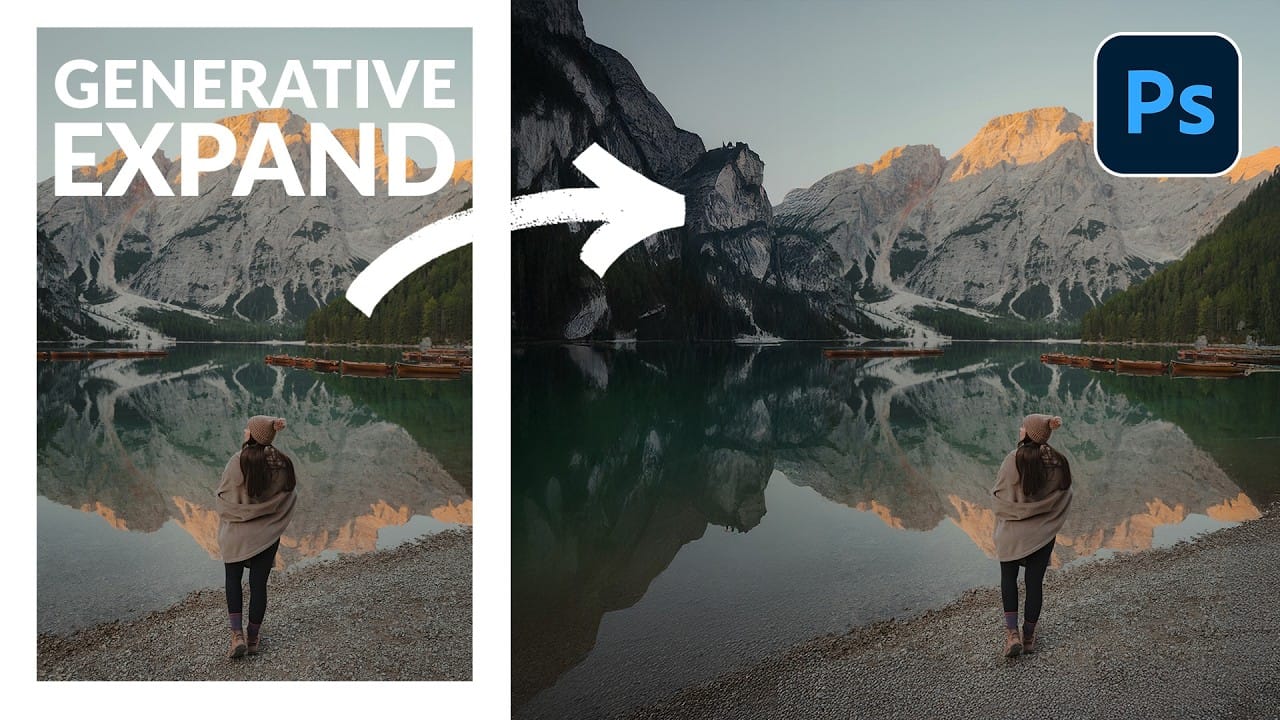
How to Expand Photos Beyond Their Edges Using AI Generative Expand in Photoshop

How to Expand Photos Beyond Their Edges Using AI Generative Expand in Photoshop

Sometimes your best photos need more breathing room or a different aspect ratio. Generative Expand in Photoshop lets you extend your canvas beyond the original image boundaries, using AI to intelligently fill in missing areas with content that matches your scene. This technique works for changing portrait photos to landscape Read the full article here: […]

Read more: How to Expand Photos Beyond Their Edges Using AI Generative Expand in Photoshop
How to Use Auto Align Layers in Photoshop for Perfect Layer Alignment

How to Use Auto Align Layers in Photoshop for Perfect Layer Alignment

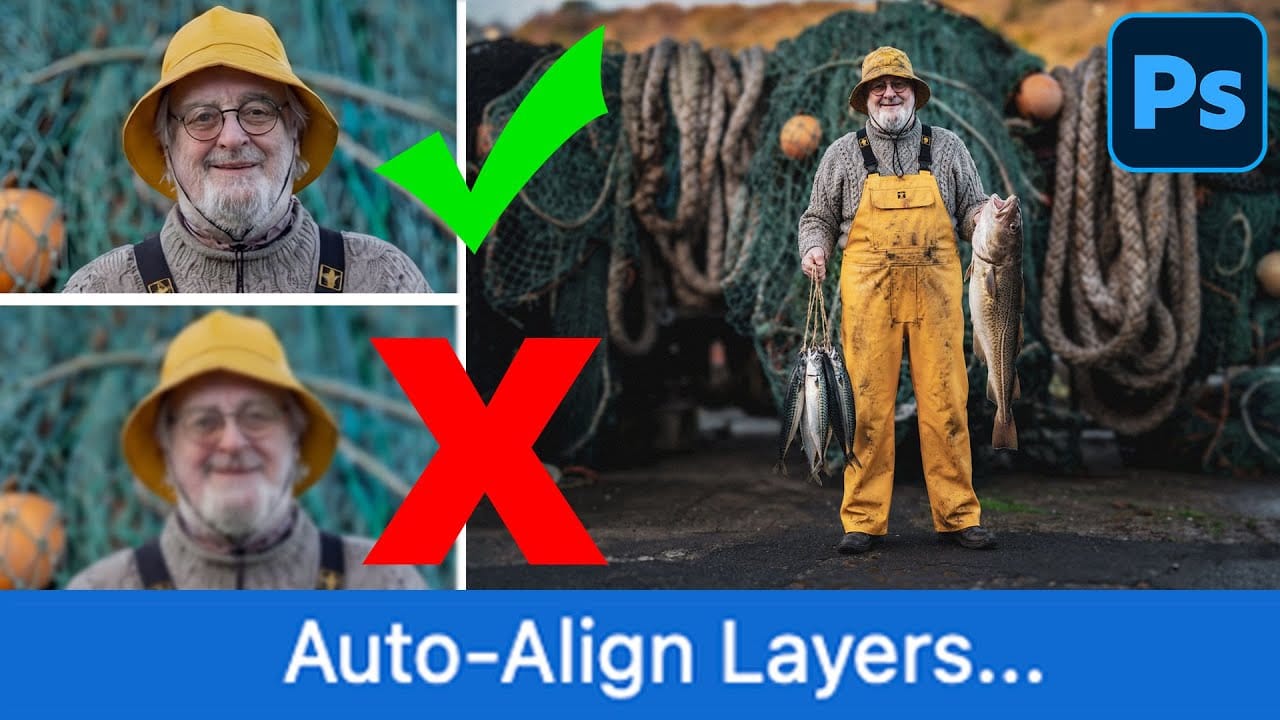
When working with multiple layers that need perfect alignment, manual positioning often falls short. Slight camera movement, different crops, or rotated images can make precise alignment seem impossible through visual adjustment alone. Auto Align Layers automatically handles rotation, scaling, and positioning to create perfect layer alignment, even when images have Read the full article here: […]

Read more: How to Use Auto Align Layers in Photoshop for Perfect Layer Alignment
How to Use Nano Banana Pro in Adobe Firefly for Advanced AI Image Generation

How to Use Nano Banana Pro in Adobe Firefly for Advanced AI Image Generation

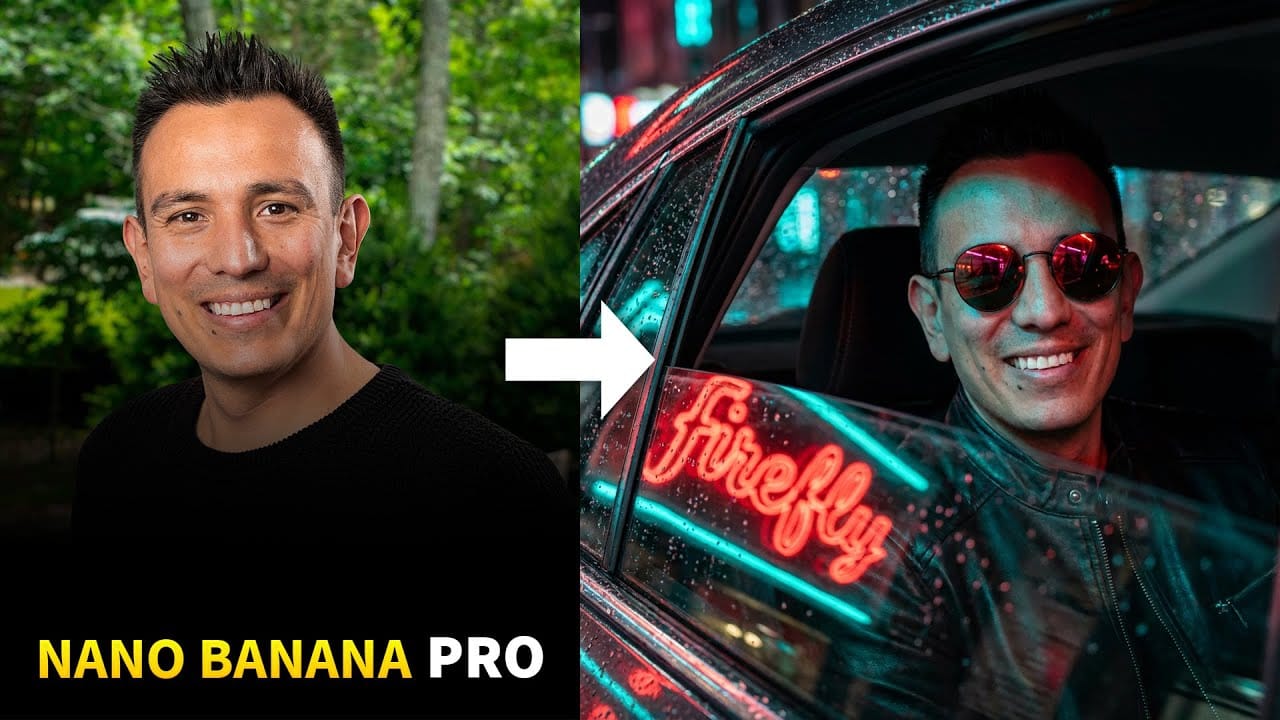
Adobe Firefly now includes Gemini 3 with Nano Banana Pro, offering sharper 2K image generation with improved text clarity and precision blending. This advanced AI model works seamlessly within Firefly's generative workspace, enabling powerful workflows like multi-image composition and virtual try-on effects. The integration provides access to sophisticated Read the full article here: How to […]
Read more: How to Use Nano Banana Pro in Adobe Firefly for Advanced AI Image Generation