
The Patch Tool is one of the best ways to remove large objects from a photo in Photoshop. Learn how to select distractions and replace them with textures that blend in seamlessly with the rest…
View More Remove Objects with the Patch Tool in PhotoshopCategory: News
Photoshop Liquify Tool Tips and Tricks
The Liquify Tool is great for smoothing out clothing and hair, but it can be easy to end up with an overdone, unrealistic effect. Learn how to apply the Liquify Tool in subtle ways that…
View More Photoshop Liquify Tool Tips and Tricks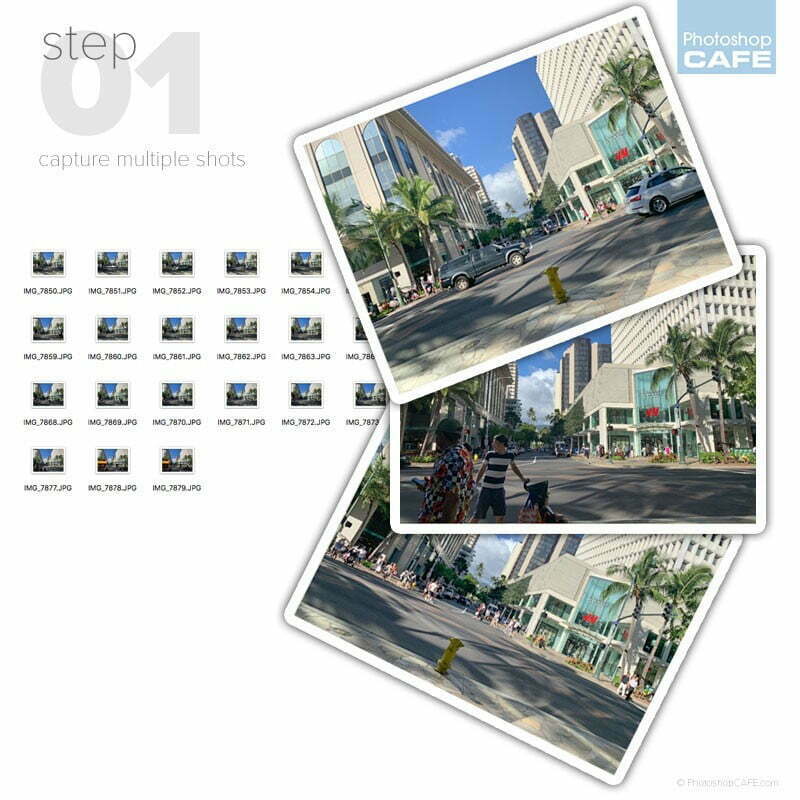
How to Remove Tourists in Photoshop in 3 clicks – Crowd removal
Shooting for tourist removal The first thing you need to do is shoot the photos, so its easy to remove crowds and distractions later. For this tutorial, I handheld an iPhone and shot…
View More How to Remove Tourists in Photoshop in 3 clicks – Crowd removal
More Tips for Managing Profiles
Last week we looked at some ways to help us manage existing profiles in the Profile browser. We also learned that changes we make to profiles in Lightroom Classic are also reflected in the Camera…
View More More Tips for Managing Profiles
My Favorite Photos From My Trip To The Faroe Islands
It’s been on my travel photography wish-list for years now and I finally got a chance to go, and it was awesome! It took a while to get all the images edited (mostly in Lightroom)…
View More My Favorite Photos From My Trip To The Faroe Islands
Kick Butt Little Lightroom Tip For Brightening Skin
Happy Friday, everybody. Here’s a quick little tip that is really helpful if you want to brighten your subject’s skin — not just their face — all their skin, and without having to paint or…
View More Kick Butt Little Lightroom Tip For Brightening Skin
Tips For Managing Profiles
Awhile back, Adobe revamped the entire functionality behind applying camera profiles to our photos in Lightroom Classic, Camera Raw, and the cloud-based Lightroom. They really took it up a few notches by giving us the…
View More Tips For Managing Profiles
How to Remove the Background of a photo in Photoshop
We will start with this photo I found on Adobe Stock. Step 1. Choose the Quick select tool. Step 2. With a reasonably large brush, make a rough selection around the subject Step…
View More How to Remove the Background of a photo in Photoshop